

How Do I Send and Receive SysEx on PC or Mac?
Getting started with SysEx
In this guide, we will show you how to work with SysEx files. You’ll learn what SysEx is, and how to use them on your Mac and PC. Follow the sections below to get started.
What are SysEx MIDI files?
SysEx (System Exclusive) is part of the MIDI universe and consists of a group of hex (hexadecimal) codes. It will always start with F0 and end in F7. It’s transmitted via MIDI (using either a MIDI or USB cable) and is specific to the device you’re using. This means that a SysEx message from one manufacturer’s device will be different than another and won’t work.
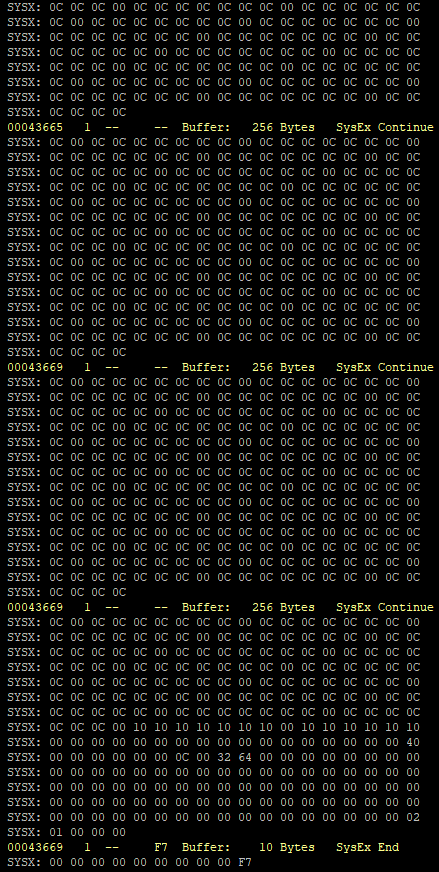
Hexadecimal composition of a SysEx command. Click to enlarge.
SysEx messages are most commonly used for dumping (sending) and loading patches of a synthesizer. However, depending on the device, it can also be used to send and load control parameters, firmware updates, and even factory resets. Using SysEx is often useful when transferring or backing up user data to your Mac or PC.
List of manufacturer SysEx ID numbers
How to write SysEx files
Since SysEx files are hexadecimal, they’re not the easiest to create manually. Most SysEx files are either generated by your device or provided by the manufacturer. Some apps like MIDI OX actually do have features for manually creating custom SysEx files. Still, you don’t typically need to do this unless your device is older or you need to perform advanced functions.
SysEx MIDI files on Mac
SysEx Librarian is an open-sourced macOS utility made my Snoize. It enables your Mac to send SysEx messages to your devices. While some DAW’s can read and write SysEx data, a dedicated utility like SysEx Librarian is a simple solution for the task. Download the app, connect your device, and then send/receive the message(s).
- Go to the SysEx Librarian page and click the Download button.
- Open your Downloads folder and double-click the SysExLibrarian .zip folder to decompress it.
- Drag the newly created SysEx Librarian app to your Applications folder.
- Go to your Applications folder and double-click SysEx Librarian to launch it.
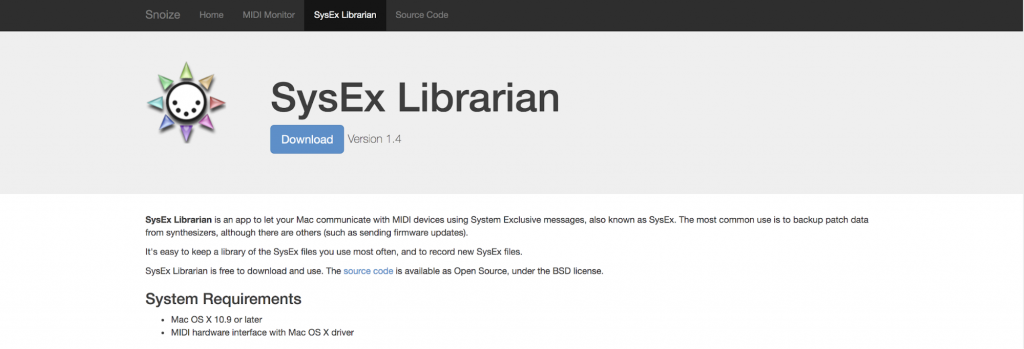
Click the image to download SysEx Librarian.
Record SysEx MIDI data to your computer
To record the SysEx data from your device, just enable the SysEx Librarian and transmit the file from your device. The data will be written as a file within the SysEx Librarian and saved as a SysEx (.syx) or MIDI (.midi) file.
- Connect your device and select it or the MIDI port it’s connected to.
- Follow your device’s instructions for enabling transmission of SysEx files.
- Click the Record One button and then play the SysEx file from your device when you’re ready.
- Click the File menu and select Save As SysEx (.syx)… to save it to your backup or project folder.
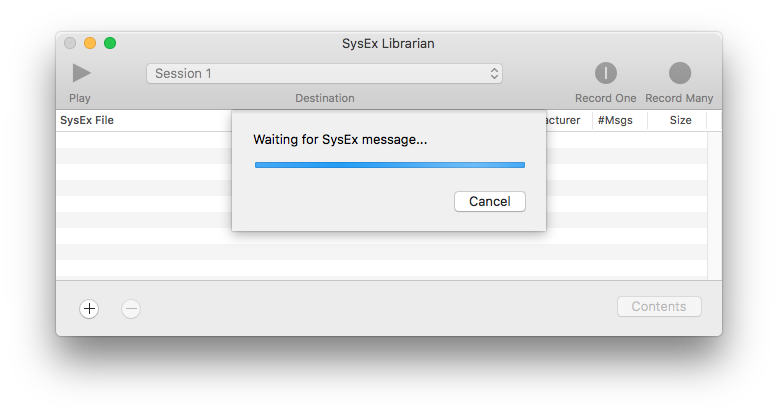
SysEx Librarian waiting to receive the device’s SysEx transmission.
Send SysEx MIDI data to your device
When you want to load the SysEx file back to your device, reconnect it and use the SysEx librarian to play the file back. Check the device’s user manual and follow any additional instructions required for receiving SysEx. Once the SysEx file is played the settings will load to your device and respond accordingly.
- Connect your device and select either it or the MIDI port it’s connected to.
- Follow your device’s instructions for enabling receipt of SysEx files.
- Drag your SysEx file into the SysEx Librarian window and click the Play button. Wait for the transmission to complete, then check that the device’s settings are updated.
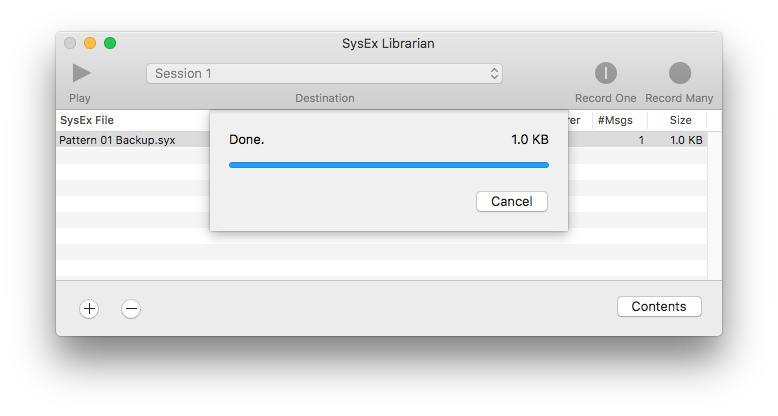
Sending SysEx files to a connected device with SysEx Librarian.
SysEx MIDI files on PC
There are plenty of MIDI utilities to monitor and transfer SysEx on a Windows PC. However, in this article, we will be using the free third-party MIDI utility called MIDI-OX. This software allows you to manage SysEx files and is a great troubleshooting tool. You need to do a few things in the software first so that your MIDI device can send and receive SysEx files properly. Follow these steps to set up your MIDI device with MIDI-OX.
- Go to the MIDI-OX homepage and download the latest version of the software.
- Go to your Downloads folder, launch the installer, and follow the on-screen instructions.
- Connect your MIDI controller to your computer and launch the software.
- Navigate to Options and click MIDI Devices. Alternatively, you can click the blue MIDI port icon on the toolbar.
- Click on your MIDI device both in the MIDI Inputs and MIDI Outputs sections. This will “open” the MIDI ports for your device.
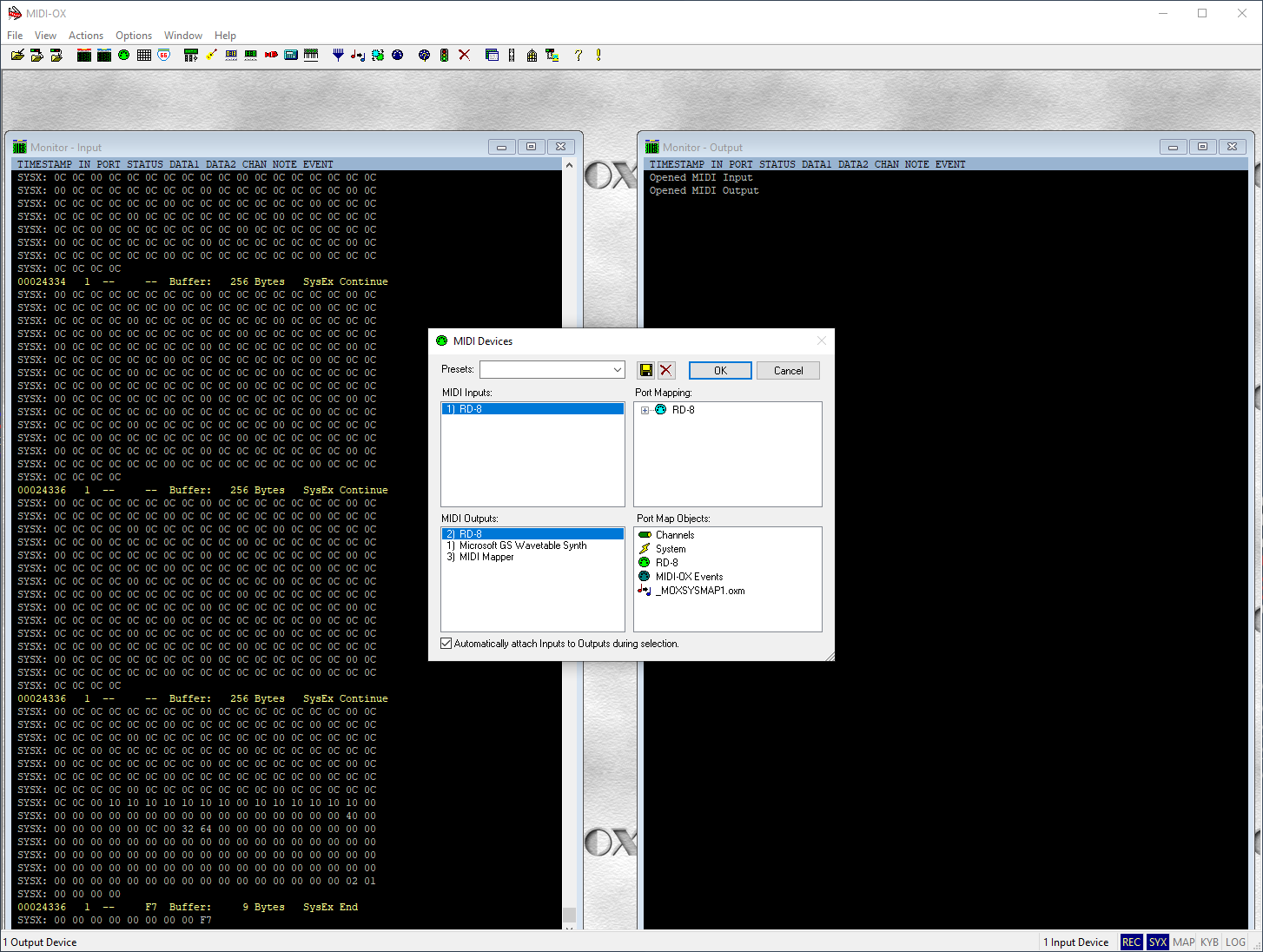
Selecting a MIDI Device in MIDI-OX
Send SysEx data to your computer
Sending SysEx data from your MIDI device to MIDI-OX is easy. Depending on the device, you may need to enable certain functions or manually enter the SysEx codes. So first, refer to the MIDI device’s owner’s manual for its SysEx procedure.
- In MIDI-OX, click View and then select SysEx.
- Click Sysex and then select Receive Manual Dump… This allows MIDI-OX to accept incoming SysEx messages.
- A window will pop up saying (Waiting for Completion) 0 Bytes Received. Don’t close this window.
- Follow the procedure listed in the MIDI device’s owner’s manual to send (dump) the SysEx data to MIDI-OX. This may require you to type the code within the command window.
- You should see a string of SysEx code appear in the Monitor – Input window of MIDI-OX and the size of the SysEx data (i.e., 1033 Bytes)
- Click Done when the SysEx Receive window appears.
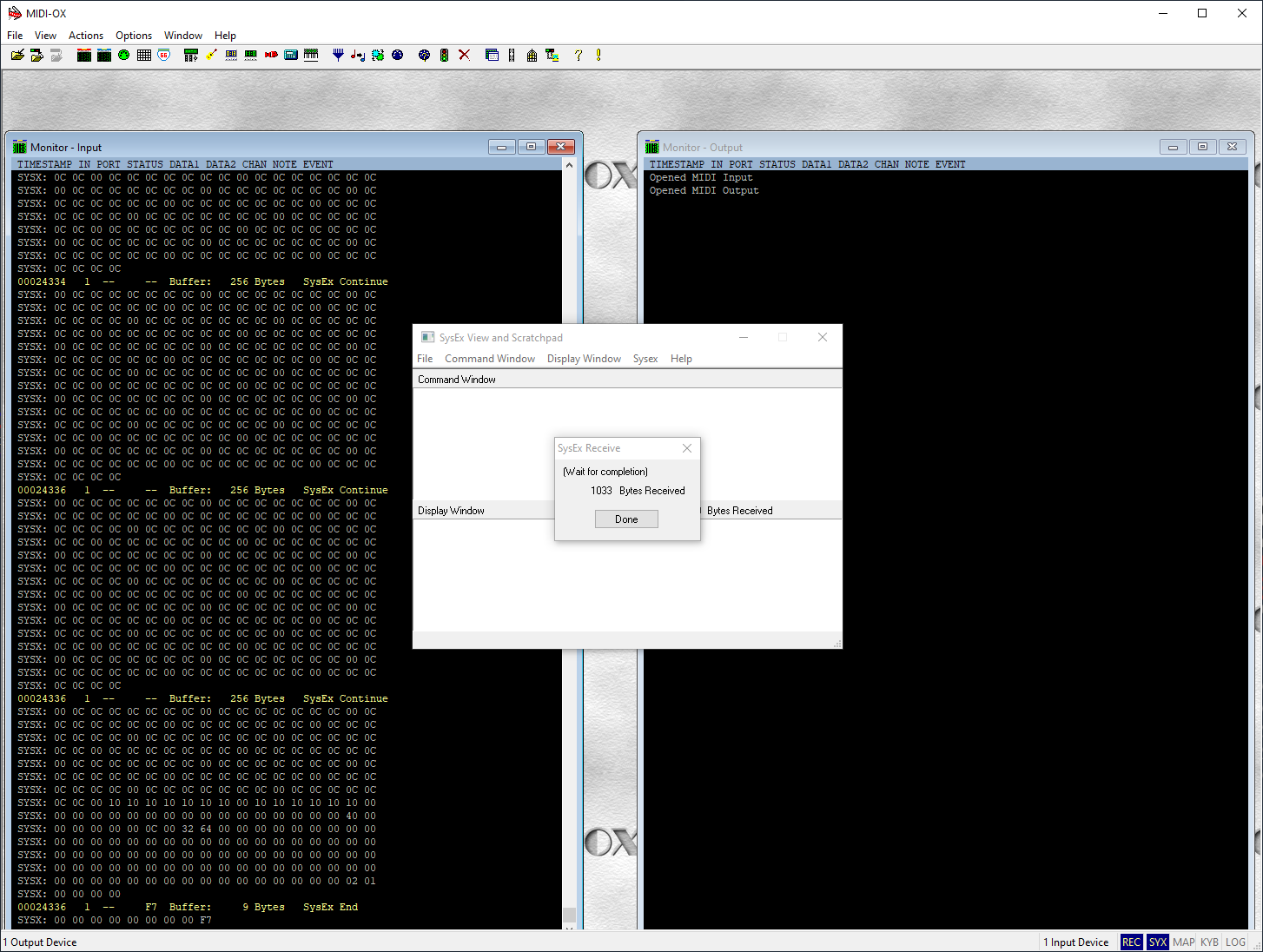
Transferring SysEx in MIDI-OX.
Saving SysEx data
After your SysEx data has been sent (dumped), you’ll then want to save it as a .syx file so you can send the information back to your device. It’s good practice to give unique names (i.e., device patterns) and save them to a dedicated folder for easy recall. Saving the data is very simple. While you’re still in the SysEx window, click Display Window, select Save As… and click Save.
Send SysEx data to your MIDI device
Transferring the SysEx data (.syx file) back to your MIDI device is similar to sending it to your computer. You’ll need to load the specific .syx file into MIDI-OX. Once loaded, you can then transfer it to your device.
- Open the SysEx window, click Command Window and select Load File… The SysEx code will appear in the window.
- Once loaded, click Command Window again, and then select Send Sysex.
- MIDI-OX will not provide a confirmation message after SysEx data has been sent. Most MIDI devices do have features notifying you that SysEx data has been received, however.
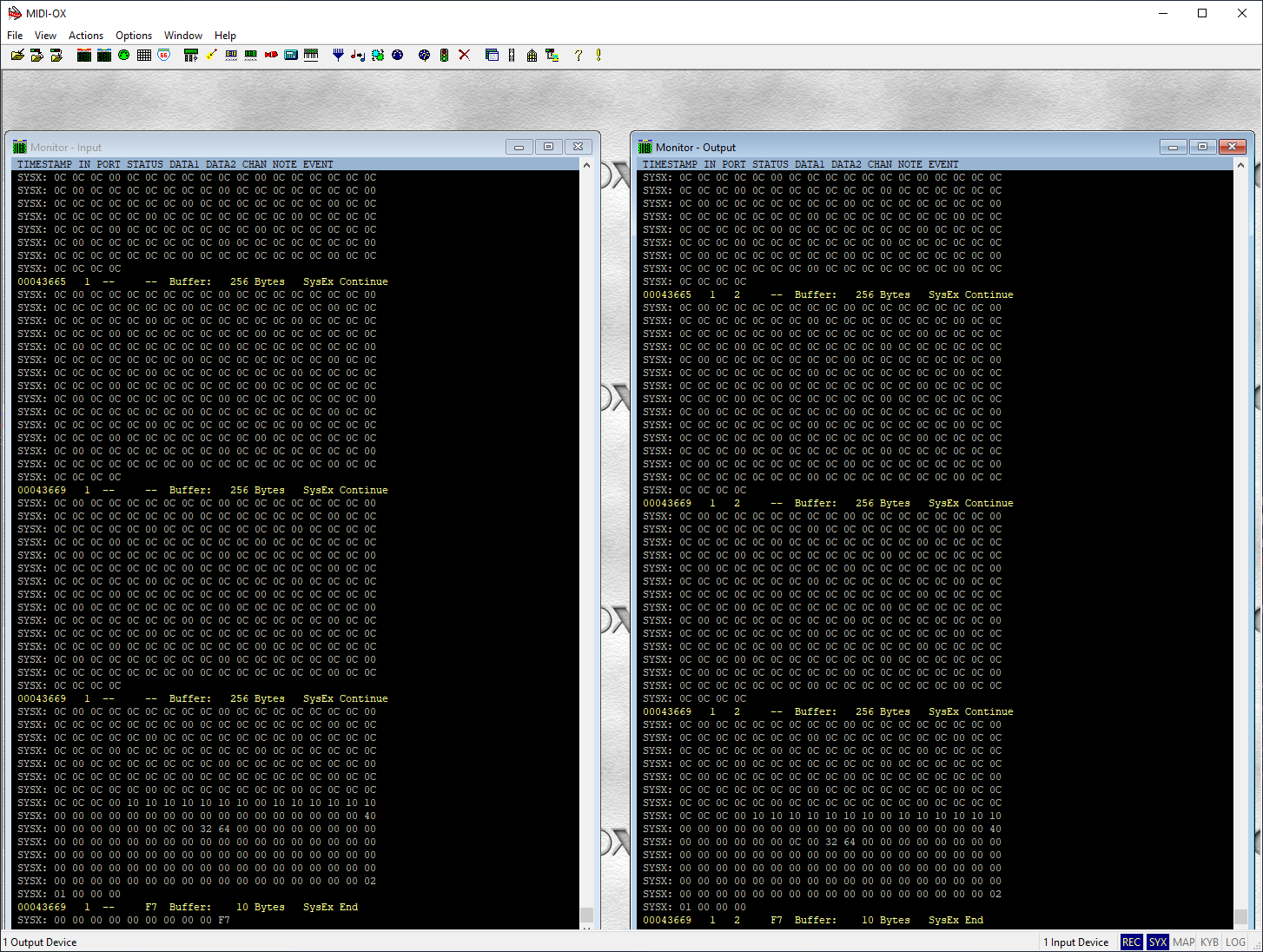
Incoming and outgoing SysEx transfers in MIDI-OX.
If you can’t send or receive SysEx in MIDI-OX
If the SysEx data shows as 0 Bytes after performing the dump, or if you receive an error message stating “No output device is selected” or “There are no output buffers”, there are a few things you’ll need to try.
- Make sure you clicked Receive Manual Dump… before performing the transfer.
- If entering the code manually, be sure that it’s entered exactly as listed in the user manual.
- Double-check that your device’s MIDI input and MIDI output are selected in the MIDI device window.
- Adjust the following settings within the Options menu:
- Pass SysEx: Enabled
- Configure Buffers: 16 buffers, 128-256 bytes
- Go to the SysEx window, click SysEx, select Configure, and increase the delay. 60ms is a good starting point, but if it still fails, increase it by 10ms at a time.
Related Articles
When you need help, Sweetwater has the answers!
Our knowledge base contains over 28,000 expertly written tech articles that will give you answers and help you get the most out of your gear. Our pro musicians and gear experts update content daily to keep you informed and on your way. Best of all, it’s totally FREE, and it’s just another reason that you get more at Sweetwater.com.


